The Asset Inventory feature provides a unified view of all assets across your Bugcrowd organization, enabling asset management, tracking, vulnerability mapping, and delegation to security programs.
Before you begin, ensure your organization has enabled Asset Inventory and defined at least one Primary Domain. A Primary Domain is required to start the asset discovery process.
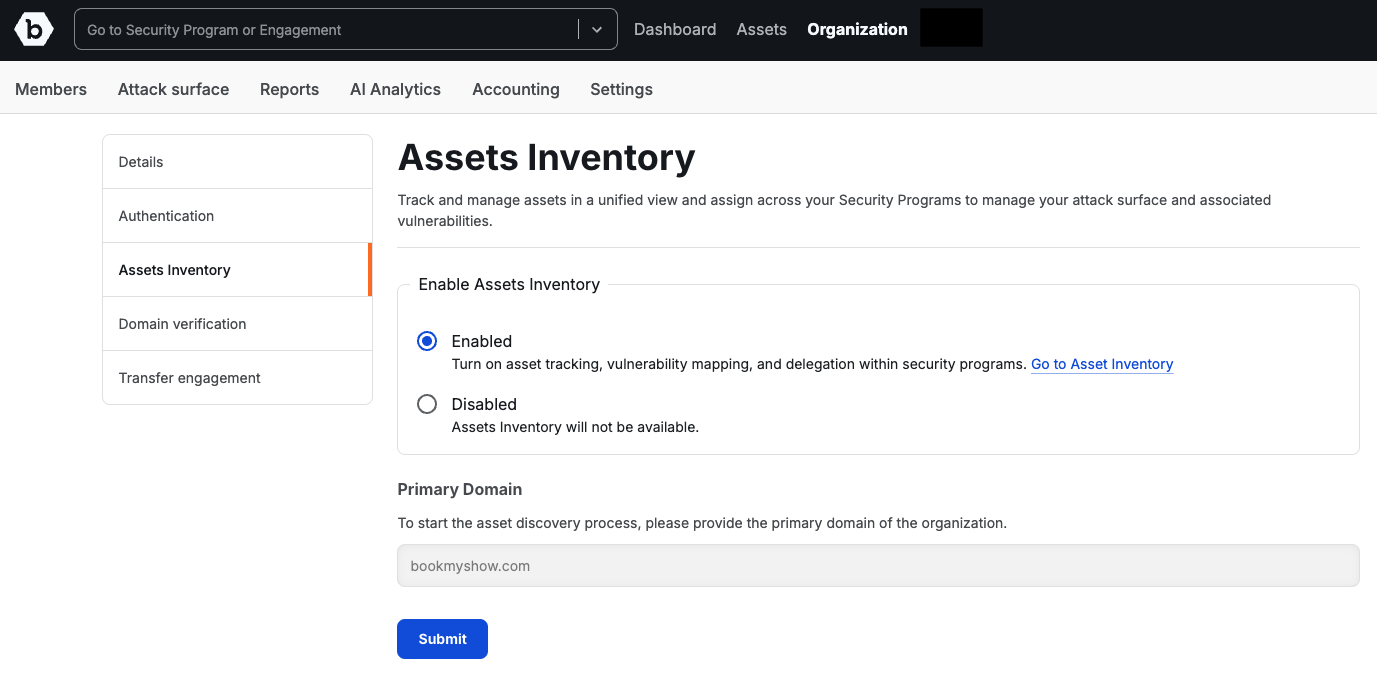
Navigation
To enable Asset Inventory:
- Log in to your Bugcrowd organization.
- In the top navigation, click Organization and then Settings.
- From the left-hand menu, select Assets Inventory.
- On the Assets Inventory settings page, select Enabled.
- Enter your Primary Domain in the text field.
- Click Submit.
You can now access your Asset Inventory by clicking Go to Asset Inventory.
What is a Primary Domain
You will have multiple domains in your asset view and some are more important or relevant than others.
A Domain being marked primary means it becomes eligible for discovery and vulnerability scanning. You can tag multiple Primary domains as needed to denote your organization’s focus in its web application portfolio.
You can have more than one domain marked Primary but you must always have at least one in Asset Inventory to keep it active.
Primary Domain Requirements
- At least one Primary Domain must always be defined in your organization.
- You cannot unmark primary domains, so choose wisely.
Additional Information
- Only organization owners can enable or disable Asset Inventory.
- Disabling Asset Inventory will hide the feature, but your existing assets and settings are preserved.
With Asset Inventory enabled, you can now begin discovering, managing, and assigning assets to your Bugcrowd security programs.