IP Allowlist
The IP Restrictions feature allows organization admins to restrict access to their organization based on IP address. By configuring an allowlist, you can ensure that only users connecting from approved IP addresses or CIDR ranges are able to access data within the organization.
This setting is configured at the organization level and applies to all admin users associated with that organization.
How it works
When no IP addresses or CIDR ranges have been configured, users belonging to your organization can log in from any IP address without restriction.
Once one or more IP addresses or CIDR ranges are added to the allowlist, the following behavior applies:
- Users whose IP address matches an entry in the allowlist will have full access to the data of the organization.
- Users whose IP address does not match any entry in the allowlist will still be able to log in and view the Dashboard and program names, but will be blocked from opening any program.
- If a user belongs to multiple organizations, the IP restriction check is performed individually for each program they attempt to access, based on the organization that owns that program.
Configuring the IP Allowlist
To add IP addresses or CIDR ranges to your allowlist:
- Log in to Bugcrowd and navigate to Organization > Settings.
- In the left-hand navigation, select Authentication, then choose IP restrictions.
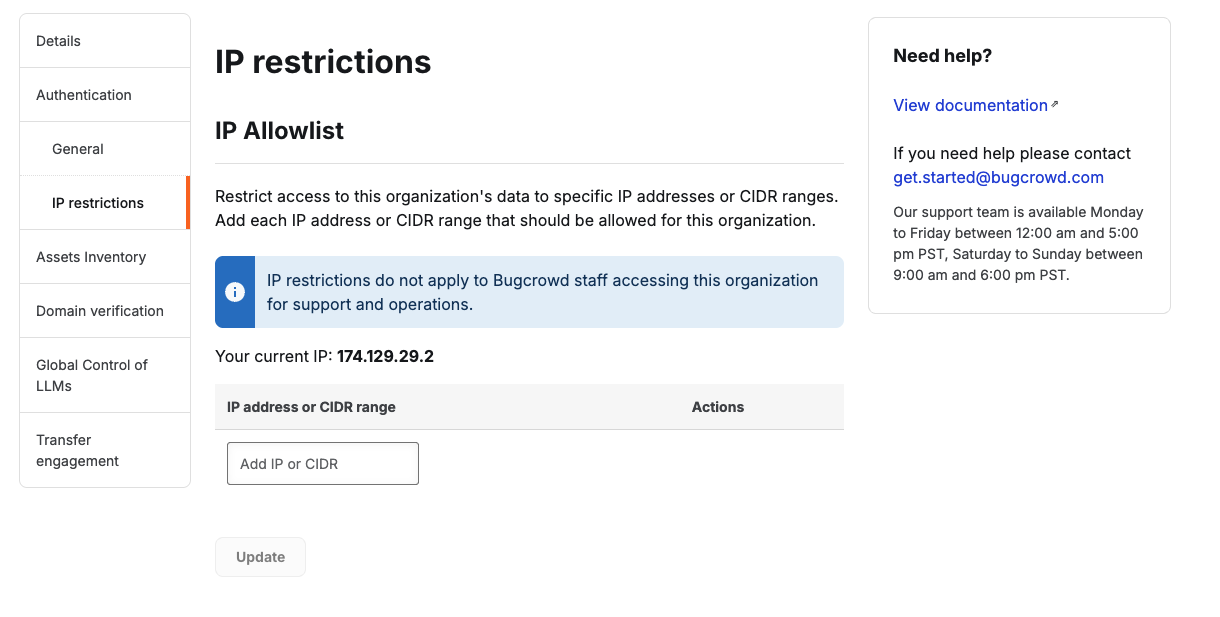
- Your current IP address is displayed on the page for reference. Confirm it is included in any range you configure to avoid locking yourself out.
- In the IP address or CIDR range field, enter an individual IP address (e.g.,
172.18.0.1) or a CIDR range (e.g.,10.0.0.0/24). - To add additional entries, click Add IP or CIDR and repeat the previous step.
- To remove an existing entry, click the delete icon next to the relevant entry.
- Once all entries are configured, click Update to save your changes.
Screenshot
The image below shows the IP restrictions settings page in Bugcrowd, displaying the IP Allowlist configuration with example entries.
Important Considerations
- Avoid locking yourself out. Before saving your allowlist, confirm that your own current IP address — shown on the settings page — falls within one of the ranges you have entered.
- Partial access for unlisted IPs. Users connecting from an IP address not on the allowlist are not fully blocked from Bugcrowd. They can still log in and view the Dashboard and program names. However, they will be unable to open or interact with any program until they connect from an approved IP address.
- Per-program enforcement. IP restrictions are enforced at the organization level. If a user is a member of multiple organizations, each program access attempt is evaluated independently against the IP allowlist of the organization that owns that program.