- Sections in the Vulnerability Detection Report
- Generating a Vulnerability Detection Report
- Vulnerability Detection Report Field Definitions
You can generate the Vulnerability Detection Report at the organization level in PDF format.
The report summarizes vulnerability detections found across your organization’s assets, scoped by date range, CVSS severity, and asset filters, and grouped either by asset or by vulnerability.
Note: The Vulnerability Detection Report is only available when Asset Inventory is enabled for your organization and your organization has an active vulnerability scan configured. If you do not see this report option, visit Bugcrowd Support and create a support ticket.
Note: If you are an organization owner or a part of the organization, you can create, view, or download the Vulnerability Detection Report.
Sections in the Vulnerability Detection Report
The Vulnerability Detection Report includes the following sections:
- Cover Page: Displays the report title, organization name, and generation date.
- Table of Contents: Links to each section and finding group within the report.
- Executive Summary: Provides a brief synopsis of the scope and overall vulnerability posture covered by the report.
- Detailed Findings: Lists each vulnerability detection in the scoped date range, organized by asset or by vulnerability depending on the Group by selection.
- Disclaimer: Standard confidentiality and usage disclaimer.
Generating a Vulnerability Detection Report
To generate a Vulnerability Detection Report:
-
After logging into Crowdcontrol, go to Organization and then click the Reports menu.
The Reports page is displayed.

-
Click Generate report and then click Vulnerability Detection Report.
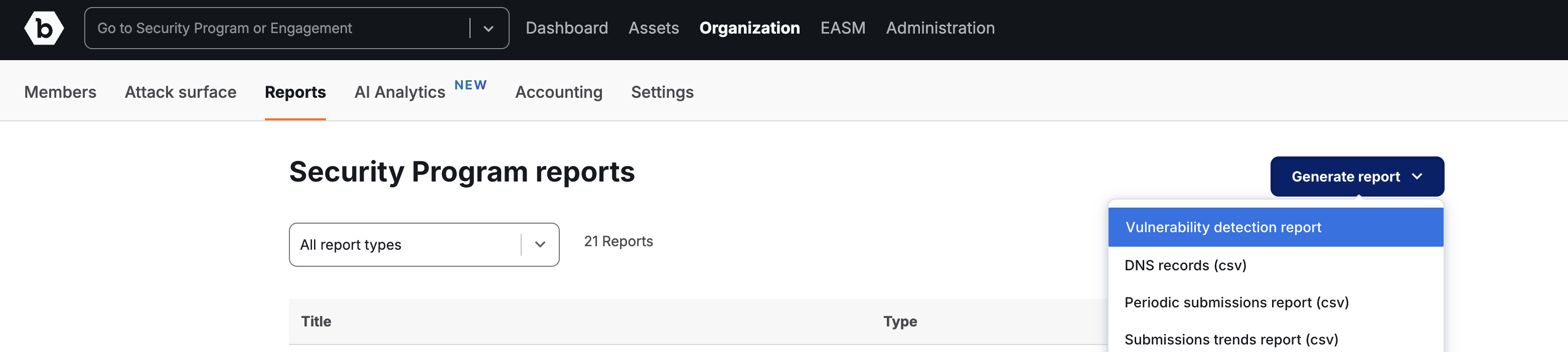
The Create Vulnerability Detection Report wizard is displayed.
-
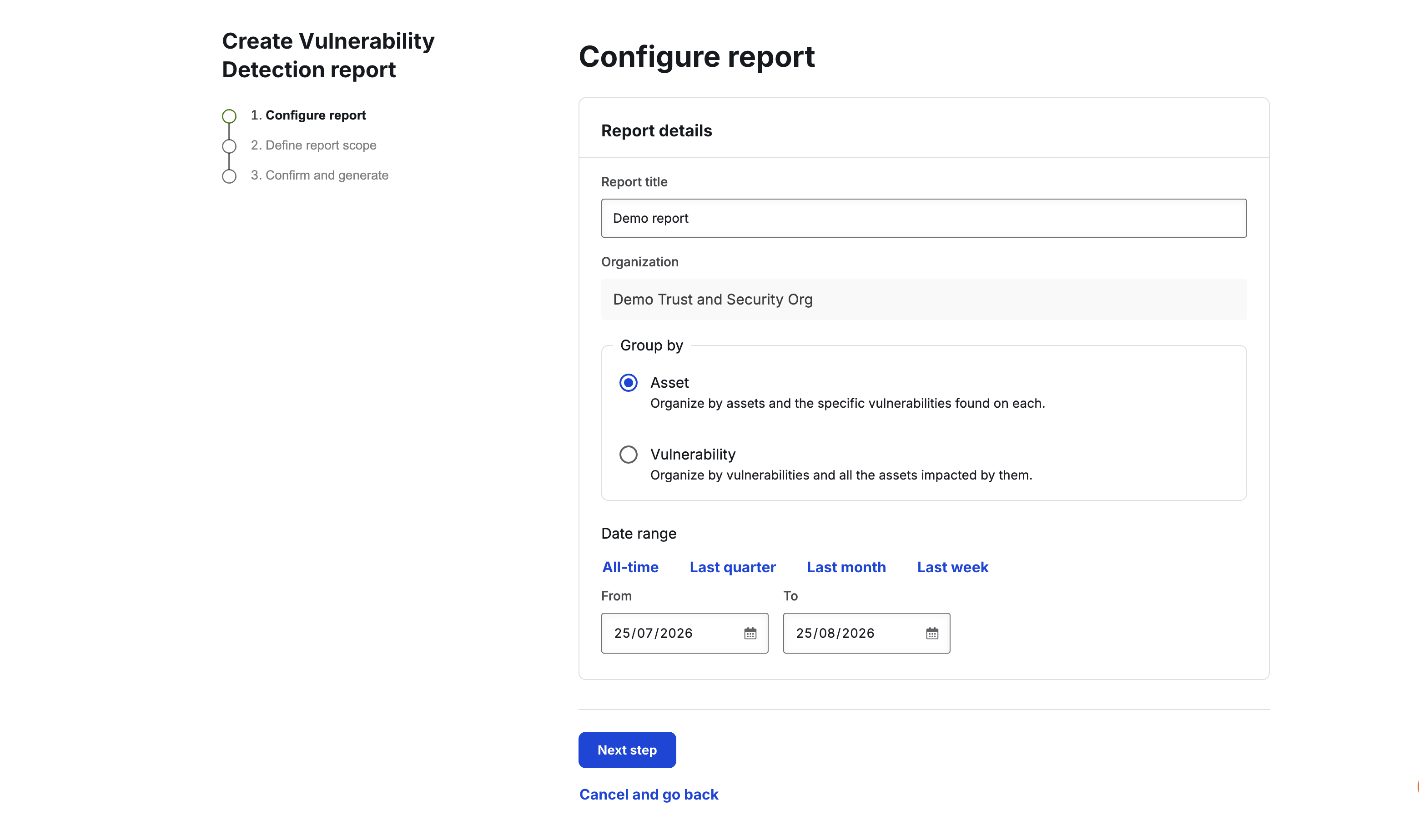
On the Configure report step, specify the following information:
- Report title: Provide a name for your report. You can edit this.
- Organization name: Displays the organization name for which you want to generate the report. This is read-only.
- Group by: Choose Asset to organize findings by asset, or Vulnerability to organize findings by vulnerability and the assets they impact.
- Date range: Specify the detection date range to include in the report.
-
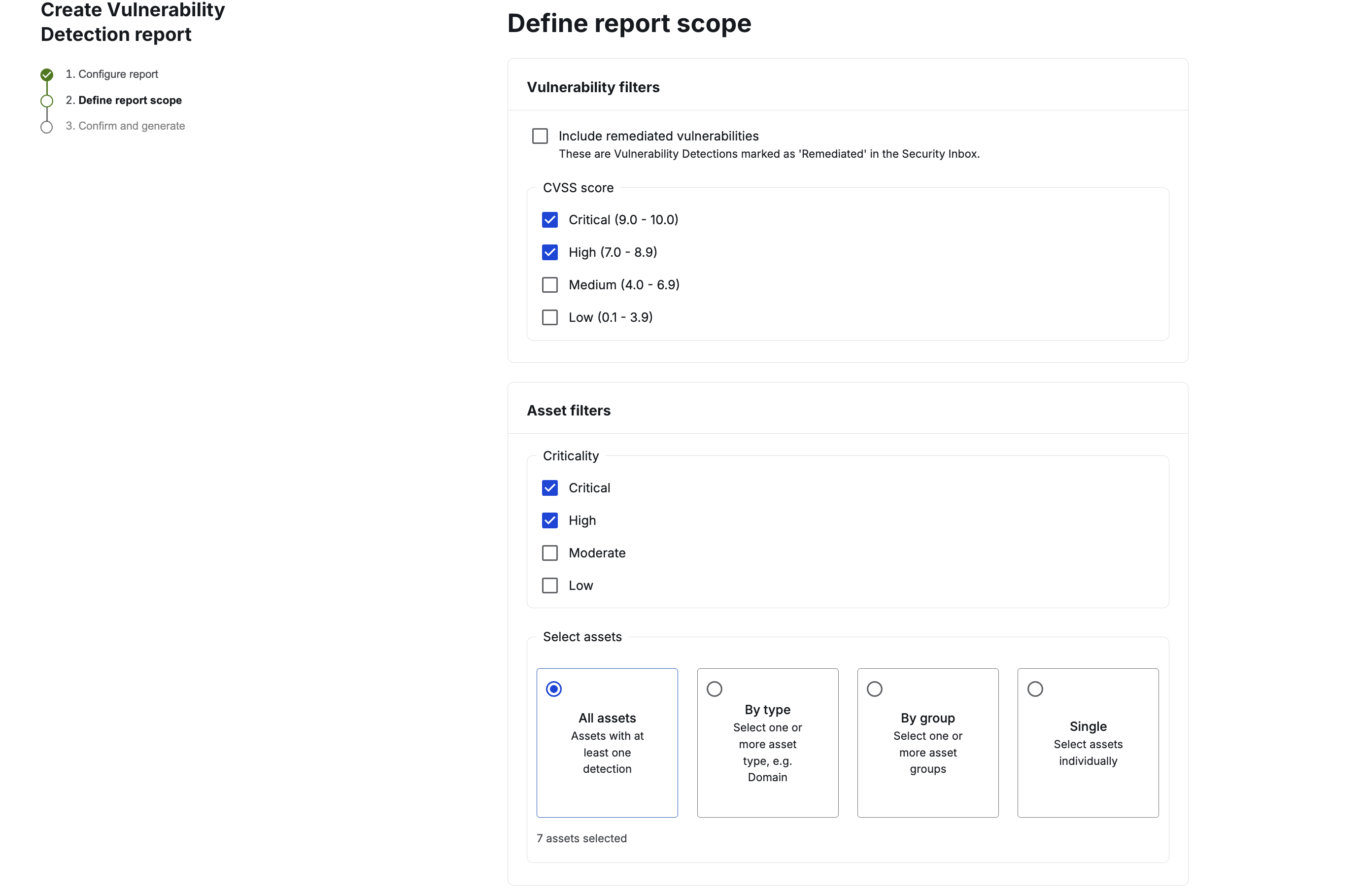
On the Define report scope step, specify the following information:
- Include remediated vulnerabilities: Enable this to include vulnerability detections marked as Remediated in the Security Inbox.
- CVSS score: Select one or more severities to include: Critical, High, Medium, or Low.
- Criticality: Select one or more asset criticalities to include: Critical, High, Moderate, or Low.
- Asset selection: Choose whether to include All assets, assets By type, assets By group, or a specific set of Single assets.
-
On the Confirm and generate step, review the report summary and click Confirm and create report.
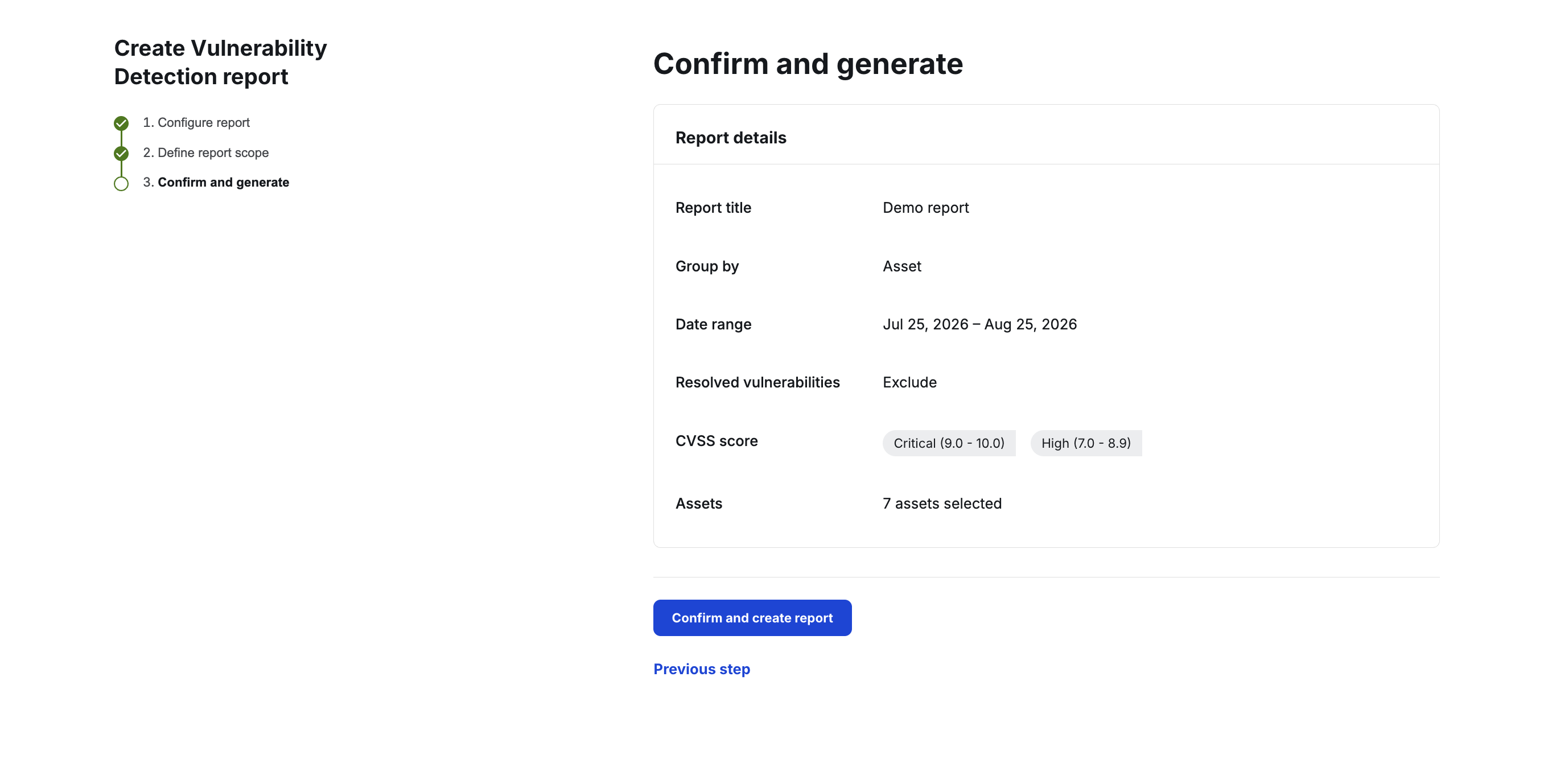
Report generation may take a few minutes. You will receive an email to download the report once it’s ready.
-
The generated report is displayed as a link on the Reports page. Refresh the page to view the link.
-
Click the link to view the report details. The report will be downloaded to your system as a PDF file.

Note: The Vulnerability Detection Report images above need to be captured and added to /assets/images/customer/vulnerability-detection-report/ before this page is published.
Vulnerability Detection Report Field Definitions
The following table describes each configurable field when creating a Vulnerability Detection Report:
| Field | Description |
|---|---|
| Report title | The name of the report, shown on the Reports page. |
| Organization name | The organization the report is generated for. This is read-only. |
| Group by | Determines how findings are organized in the Detailed Findings section: by Asset (assets and the vulnerabilities found on each) or by Vulnerability (vulnerabilities and all assets they impact). |
| Date range | The detection date range used to scope which vulnerability detections are included. |
| Include remediated vulnerabilities | When enabled, includes detections marked Remediated in the Security Inbox. Excluded by default. |
| CVSS score | Filters detections by severity: Critical, High, Medium, or Low. |
| Criticality | Filters included assets by criticality: Critical, High, Moderate, or Low. |
| Asset selection | Scopes the report to All assets, assets By type (asset category), assets By group, or a specific set of Single assets. |