- What Savant Vista does
- Before you begin
- Enable Asset Inventory and add your primary domains
- Review and approve discovered assets
- Understand asset types
- Assign criticality and organize assets
- Understand technologies and labels
Savant Vista is the centralized interface in Bugcrowd for discovering, organizing, and ongoing monitoring of your external attack surface. It connects your assets to vulnerabilities found through Bugcrowd testing services, so you can see where real risk exists across your environment.
What Savant Vista does
Savant Vista brings together three capabilities in one place:
- Asset discovery – finds externally reachable assets associated with your domains, including subdomains, IP addresses, APIs, and services. This includes both vertical discovery and horizontal discovery.
- Vulnerability scanning – runs ongoing scans against discovered assets and surfaces findings by severity.
- Risk mapping – links findings from Bugcrowd security testing programs (bug bounties, penetration tests, Vulnerability Disclosure Program) directly to the assets they affect.
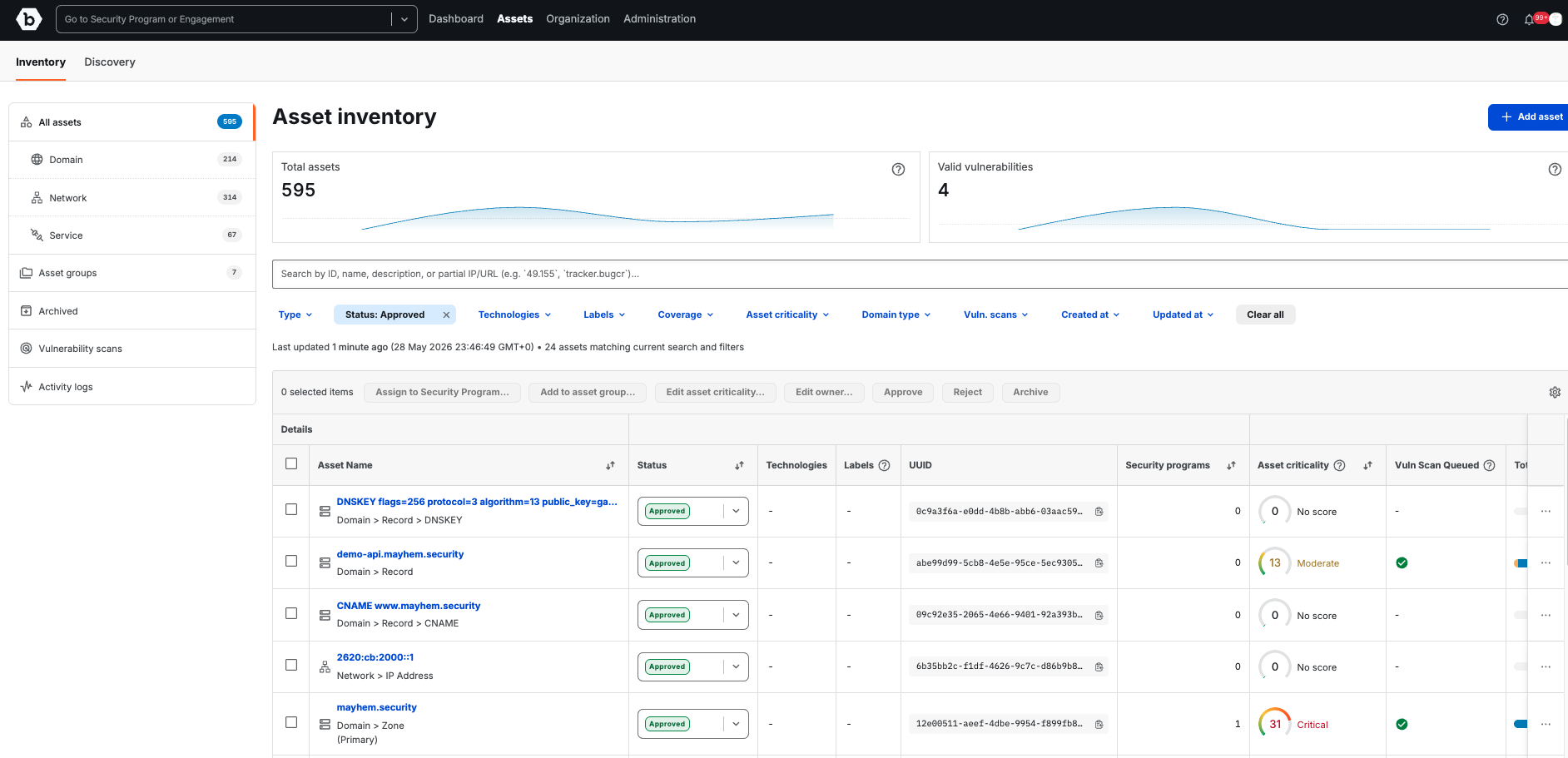
You can assign criticality levels to assets, group them by business unit or environment, and assign assets to Bugcrowd security programs – all from a single interface.
Before you begin
- You will get a maximum of 5 primary domains for vertical discovery enumeration, 250 domains from two-pass horizontal discovery to find the assets you didn’t know existed, and weekly vulnerability scans for 10 managed assets. Former Informer customers will have higher limits. If you have questions about your current limits, visit Bugcrowd Support and create a support ticket.
- You need organization owner or admin permissions in Bugcrowd to add primary domains and configure scanning.
- Savant Vista discovers external, publicly routable assets only. Internal or non-publicly reachable assets are not in scope.
- Recommended (not required): Have an active Bugcrowd service offering (Bug Bounty Program or Vulnerability Disclosure Program). Ask your Bugcrowd Account Manager to configure Vulnerability Scanning to this existing program.
Enable Asset Inventory and add your primary domains
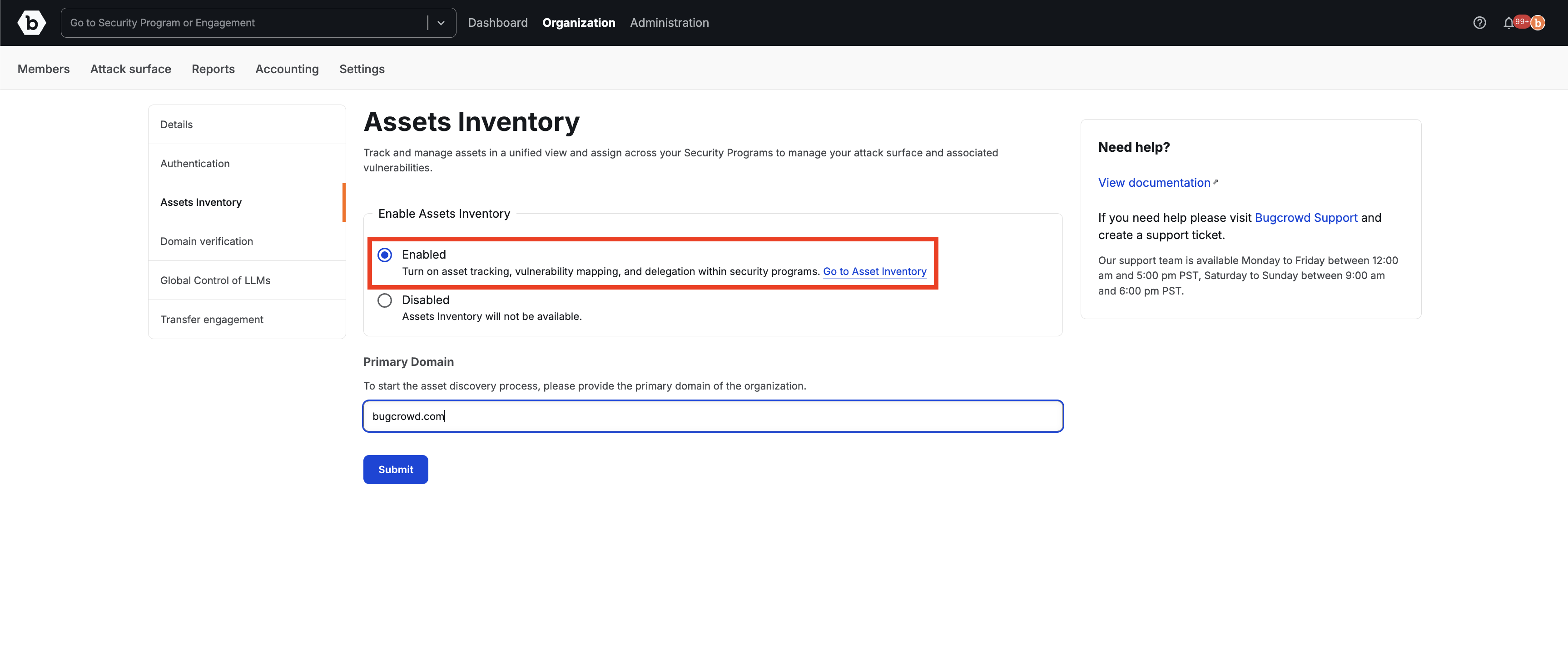
Primary domains are the starting point for asset discovery. Savant Vista runs both vertical and horizontal discovery from the domains you provide. Follow Enabling Asset Inventory to get started. Primary domains can be added during enablement or within Asset Inventory.
Vertical discovery enumerates subdomains and infrastructure associated with your primary domains. Horizontal discovery identifies related domains and assets that may belong to your organization based on similarity analysis.
Your account tier determines how many primary domains you can add. If you reach your limit, a message appears in the interface. Contact your Bugcrowd account team to discuss adjusting your limit.
Note on hierarchy: Assets are found at the organization level navigation rather than program level in Bugcrowd. From a real-world perspective, assets belong to an organization and an organization owns domains, IPs, applications, and other assets. These assets can then be configured as targets and assigned to programs for testing. Targets are created from assets, and submissions are reported against those targets, wherein targets are also managed at the organization level.
Review and approve discovered assets
Savant Vista surfaces discovered assets for your review before adding them to your inventory.
- Go to the Assets tab in Asset View and Discovery tab.
- Review the list of discovered assets. Each asset shows its type (domain, IP address, subdomain, and others), first seen date, and last seen date.
- Approve assets that belong to your organization. Reject assets that do not. Mark Hostile if any are confirmed malicious or infringing (e.g., typosquatting domain, subdomain takeover). Marking an asset Hostile automatically rescores related assets.
- Approved assets are added to your inventory and included in vulnerability scanning automatically.
Discovery is ongoing. New assets appear in the list as they are found. You can filter by asset category and search by name.
Understand asset types
Asset Types and Subtypes
-
Domain – DNS name that identifies a resource (e.g., bugcrowd.com)
- Zone – DNS namespace for a domain; contains all related DNS records (e.g., example.com)
- Record – Individual DNS entry within a zone (e.g., A record: api.example.com to 1.2.3.4; MX record for email routing)
-
Network – Underlying IP addresses, hosts, or ranges a domain resolves to
- IP Address – The network endpoint systems connect to
-
Service – Application or protocol running on a network asset (e.g., HTTPS, SSH, SMTP)
- Web App – Website or application running on an IP, typically accessed via domain (e.g., www.bugcrowd.com)
How Asset Types Relate
- A Zone owns one or more Records
- A Record resolves to an IP Address
- An IP Address hosts one or more Services
- A Web App is a Service accessed through a Domain
Zone to Record to IP Address to Service/Web App. A domain points to a network asset; a network asset exposes one or more services.
Assign criticality and organize assets
Asset criticality helps prioritize findings and testing. You can set it on individual assets or in bulk.
To assign criticality to an asset:
- Select the asset from the inventory.
- Use the security posture-related fields to choose the correct values for the selected assets, which will be used to calculate the Asset Criticality Score.
- Save your changes.
To organize assets into groups:
- Multi-select the assets you want to group.
- Select Create group and give the group a name.
- Groups can be used to filter the asset view, scope engagements, and run targeted vulnerability scans.
Asset archiving can help you keep your Asset Inventory organized by removing inactive or irrelevant items from active views, while still retaining historical context. Both assets and groups can be archived and later unarchived if needed.
Understand technologies and labels
Savant Vista uses two types of metadata to help you organize and filter your inventory.
Technologies are assignable by you per asset. They can be used to identify what an asset runs – for example, a web framework, cloud provider, or database. You can review and update the suggested technologies for any asset directly from the Asset Inventory.
Labels are custom identifiers you create and assign. Use labels for things like business unit, environment (production, staging), or ownership. A tooltip in the interface explains label usage. You can create, assign, and filter by labels directly from the Asset Inventory page.