- Navigation
- Creating an Asset Group
- Adding Assets to an Asset Group
- Viewing and Managing Asset Groups
- Archiving Asset Groups
- Best Practices
Asset Groups let you group related assets for easier organization, reporting, and assignment to Security Programs. For example, you might create groups for:
- Business units (e.g., Finance, Engineering)
- Application types (e.g., Web Apps, APIs)
- Testing categories (e.g., Website Testing, Bug bounty scope)
- Regions (e.g., US-West, EU)
Groups are flexible and can be used to structure your asset inventory in a way that aligns with your security workflows.
Navigation
To access Asset Groups:
- Log in to your Bugcrowd organization.
- Navigate to Assets then Asset groups in the left sidebar.
- The Asset groups page lists all active groups.
Creating an Asset Group
- After selecting or multi-selecting assets in the Asset Inventory, click Group assets.
- Note: You can also create asset groups from the Asset groups page in the left navigation.
- Enter an Asset Group Name (up to 64 characters).
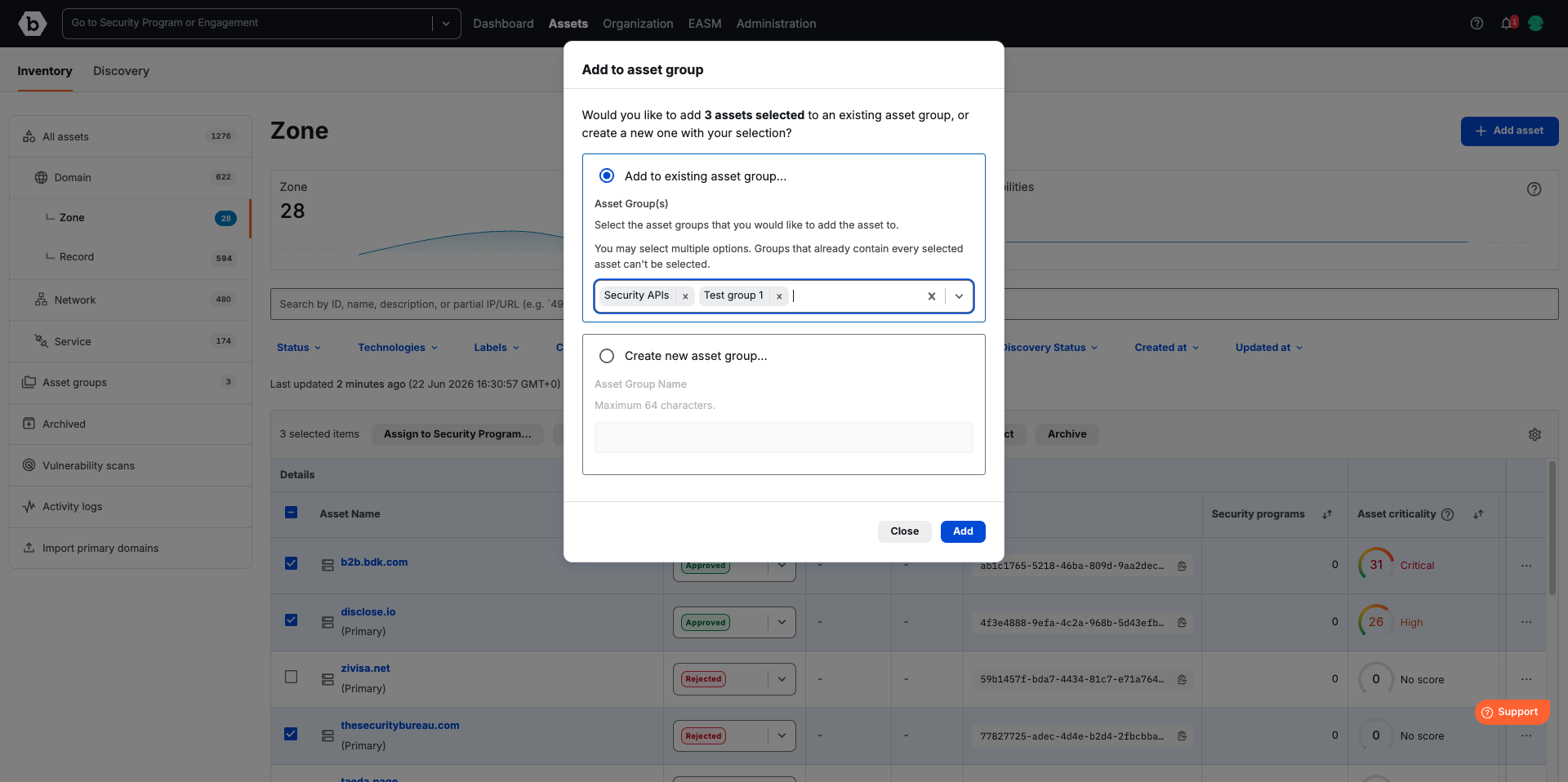
- Click Add.
- Note: Click Create in Asset groups page.
Your new group is now available and can be used to build a group of assets.
Adding Assets to an Asset Group
You can add assets to a group from the Asset Inventory page:
- Select one or more assets using the checkboxes.
- Click Group assets.
- Choose one or more groups from the dropdown.
- Click Update.
The assets will now appear in the selected group(s).
Viewing and Managing Asset Groups
On the Asset group page, you can:
- View a group: Click the group name to see all assets within it.
- Edit a group: Update the group name.
- Archive a group: Move a group into a read-only state.
- Assign a group to a Security Program: Associate the entire group of assets with one or more programs.
-
Remove a group from a Security Program: Remove the group (and all its associated assets) from one or more programs. The assets remain in the group and inventory but will no longer be associated with the selected program(s).
- To remove, click the three dots on the right side of the asset row, then select Remove from Security Program, select the Security Program(s) to remove, and confirm.
- Vulnerabilities previously mapped to the group within those programs remain in historical records but will no longer update once un-assigned.
Archiving Asset Groups
When a group is archived:
- The group becomes read-only. The only available action is to unarchive it.
- Assets inside the archived group also become read-only in the context of that group. No actions can be taken on them there.
However:
- If the asset exists in other active asset groups, or is individually assigned to Security Programs, those relationships remain active and actions can still be taken.
- If the asset itself is archived, it becomes unavailable in all contexts, even if it appears in active groups.
Best Practices
- Use tags in combination with asset groups for maximum flexibility in filtering and organizing. Tags allow lightweight categorization (e.g., Production, Staging), while groups provide structured grouping.
- Leverage groups for bulk assignments when adding assets to Security Programs, ensuring faster onboarding and consistent coverage.
- Remember that archiving a group does not delete assets – it simply makes the group read-only. Assets remain active elsewhere if individually assigned or in other active groups.
- Use active groups to maintain testing coverage of your critical assets and ensure no important targets fall out of scope.
- Create groups aligned to business needs, such as grouping by product line, region, or compliance requirement (e.g., PCI, HIPAA) to streamline reporting and management.
- Review and update groups regularly as assets evolve – remove outdated assets, and ensure new assets are included in the right groups.
- Assign asset groups to multiple programs if applicable (e.g., the same set of staging assets tested under both internal red teaming and bug bounty). This reduces duplication and ensures consistent scope management.
- Avoid overly large “catch-all” groups. Smaller, more focused groups (e.g., “Mobile Apps,” “US Region APIs”) are easier to manage and audit.
- Document the purpose of each group internally so team members understand how and when to use them.