- Navigation
- Page Overview
- Asset Table
- Sorting and Filtering
- Bulk Actions
- Row-Level Actions (… menu)
- Example Workflows
- Tips
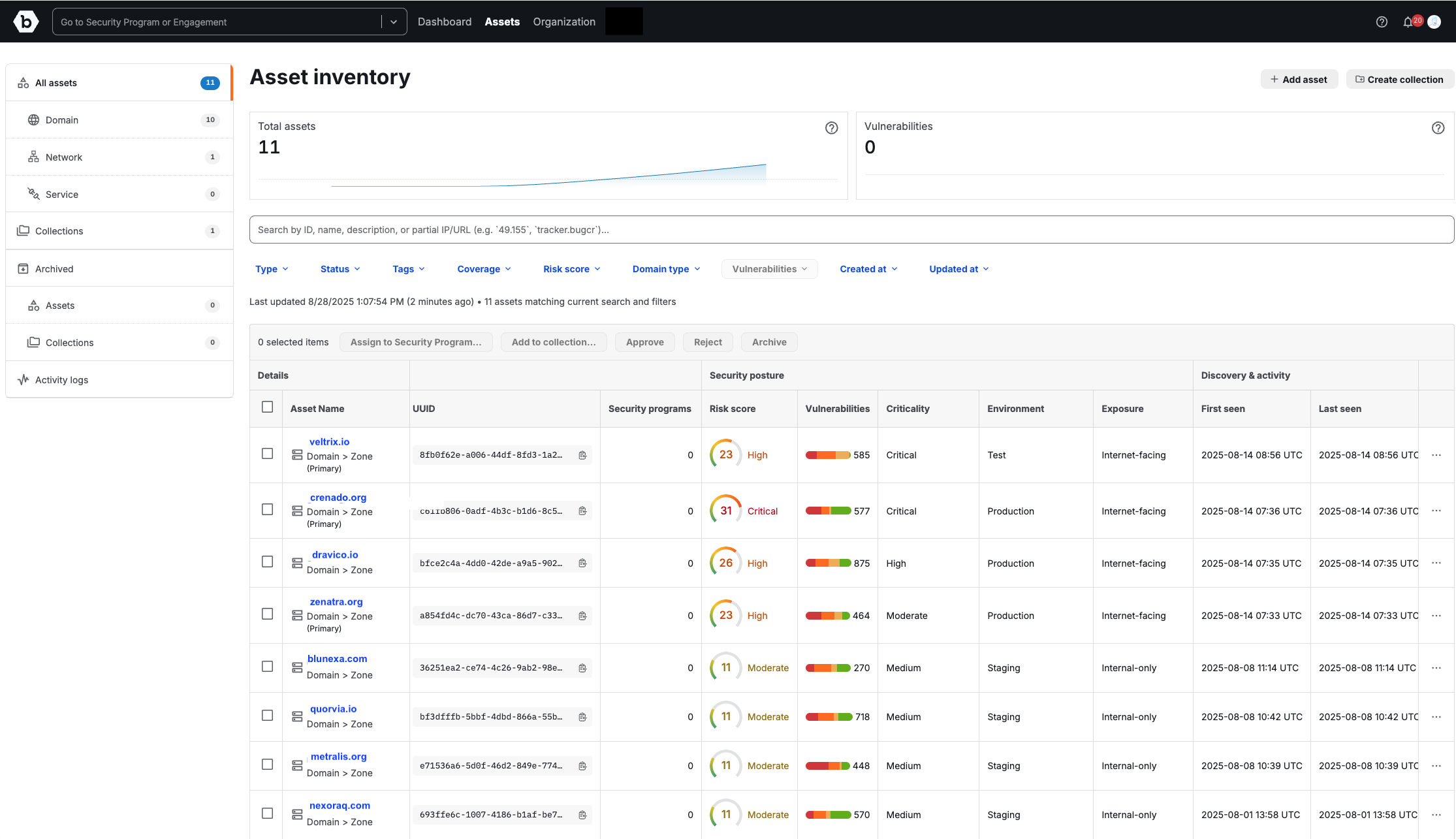
The Asset Inventory page provides a centralized view of all assets discovered, imported, or manually added to your Bugcrowd Organization. From here, you can search, filter, and manage assets to maintain an accurate, risk-based inventory.
Navigation
To access the Asset Inventory page:
- Log in to your Bugcrowd organization.
- In the top navigation bar, click Assets.
- In the left sidebar, click All assets.
- The Asset Inventory page opens, displaying all assets in your organization.
Page Overview
At the top of the page, you will find:
- Total Assets: The number of assets currently in your inventory.
- Vulnerabilities: The total number of vulnerabilities associated with your assets.
- Trend Lines: Visual representation of how your Total Assets and Vulnerabilities have changed over time.
- Search Bar: Search for assets by ID, name, description, or partial IP/URL.
- Add Asset: Use the Add asset button to manually add a new asset to your inventory.
- Create group: Use the Create group button to organize assets into groups. (See Asset Groups documentation for details.)
Asset Table
The Asset table lists all assets in your inventory and their associated metadata.
Columns
| Column | Description | Sortable |
|---|---|---|
| Asset Name | Displays the asset identifier (domain, IP, web application, etc.). Click to open asset details. | Yes |
| Status | The workflow state of the asset (New, Approved, Rejected, Deprecated, Investigate). | Yes |
| Technologies | Tags applied for designating underlying technology. | No |
| Labels | Labels applied for grouping, categorization, or tracking. | No |
| UUID | A unique system-generated identifier, useful for automation and API lookups. | No |
| Security Programs | Number of Security Programs the asset is assigned to. | Yes |
| Asset Criticality | Numeric score (0-40) indicating an asset’s importance, categorized as Low, Moderate, High, or Critical. | Yes |
| Vuln Scan Queued | An indicator of which assets are currently in the vulnerability scan queue for weekly vulnerability scans. | No |
| Total Detections | Count of all vulnerabilities associated with the asset, with a severity distribution bar. | No |
| Valid Vulnerabilities | Count of valid vulnerabilities associated with the asset, with a severity distribution bar. | No |
| First Seen | Timestamp when the asset was first discovered. | Yes |
| Last Seen | Timestamp when the asset was most recently confirmed. | Yes |
| Created At | Timestamp when the asset record was added to the inventory. | Yes |
| Updated At | Timestamp when the asset record was last modified. | Yes |
| Last Vuln. Scan | Timestamp when the asset record was last scanned for vulnerabilities. | Yes |
| Discovery Source | How the asset was added (Bugcrowd EASM, Data import, Manual entry). | Yes |
Sorting and Filtering
The Asset table in Asset Inventory supports both sorting and filtering for faster navigation.
Sorting
- Click a column header to sort ascending/descending.
- Note: All columns are sortable except: Tags, Labels, UUID, Vuln Scan Queued, Total Detections, Valid Vulnerabilities, and Discovery Source.
Filters
Available filters include:
- Type: Zone, Record, Web Application, IP Address, ASN
- Status: New, Approved, Rejected, Deprecated, Investigate
- Technologies: Filter by Technology tags
- Labels: Filter by labels
- Coverage: Any, Assigned, Not Assigned
- Asset Criticality: Critical, High, Moderate, Low
- Domain Type: Primary or Non-primary
- Vuln Scans: Filter by status (Scheduled, In Progress, Completed, Failed). Note: This filter only shows up if vulnerability scan is enabled.
- Created At: Filter by creation date/time range
- Updated At: Filter by last updated date/time range
Bulk Actions
You can take actions on one or more selected assets:
- Assign to Security Program: Add assets to a Bugcrowd Security Program
- Add to Asset Group: Group assets into groups for tracking
- Edit Asset Criticality: Assign or change asset criticality scores to assets
- Edit Owner: Assign or change asset owner
- Approve / Reject: Manage workflow state
- Archive: Move assets out of active inventory
Row-Level Actions (… menu)
Each asset row also includes additional actions:
- Edit labels
- Edit (enables you to edit asset details)
- Update status
- Assign/remove from Security Program
- Add to group
- Archive asset
Example Workflows
Search and Approve a New Asset
- Use the search bar to find the asset by UUID, domain, or IP.
- Select the asset from the table.
- Click Approve to move it into the approved state.
Find Critical Assets
- Open the Asset criticality filter.
- Select Critical.
- Review the highest-priority assets first.
Bulk Assign to a Program
- Select multiple assets using checkboxes.
- Click Assign to Security Program.
- Choose one or more target programs.
Add or Create Asset Groups
- Select multiple assets using checkboxes.
- Click Group assets.
- Search for an existing group or create a new one by naming it (e.g., Payments APIs, US-West Production).
- Click Add.
Tips
- Use Tags to organize assets across teams, environments, or initiatives (e.g., Production, Website Testing, Bug Bounty).
- Combine filters (e.g., Type: Zone + Status: Approved) to quickly identify high-priority targets.