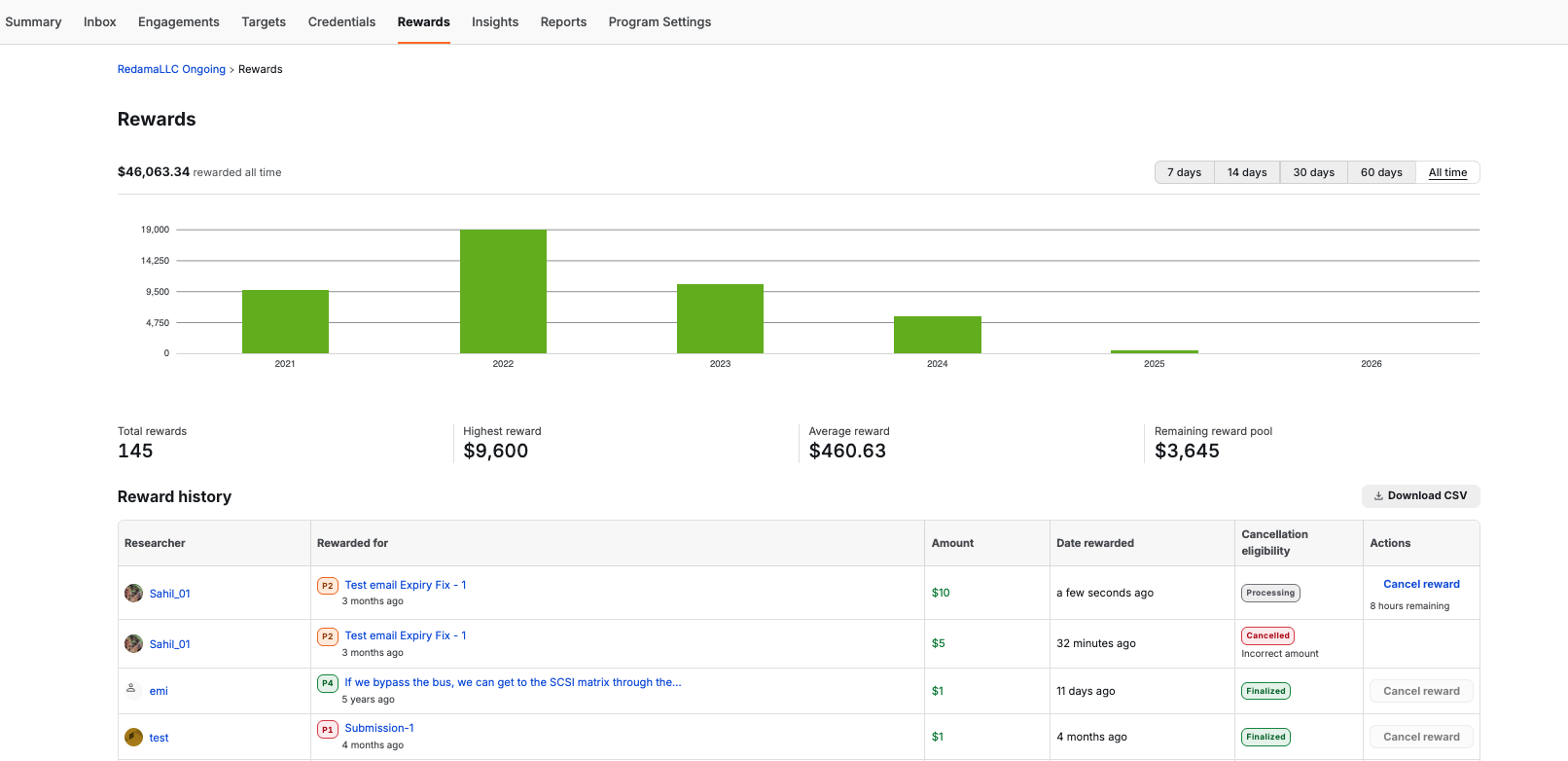
The Rewards page provides a comprehensive overview of the financial health and history of your Security Program. From here, you can track total spend, monitor reward trends over time, and manage recently issued rewards.
Reward Statistics
At the top of the page, you can view high-level metrics for your program:
- Total rewards: The total number of rewards issued.
- Highest reward: The largest single payout made in the program.
- Average reward: The mean value of all rewards issued.
- Remaining reward pool: The current balance available in your reward pool to fund future rewards.
Reward History
The Reward history table provides a granular look at every reward issued. You can see the Researcher, the specific submission they were rewarded for, the amount, and the date.
Cancellation Eligibility
Bugcrowd provides a 8-hour window from the moment a reward is applied to cancel it if an error was made (e.g., incorrect amount or wrong researcher).
The status of a reward is shown in the Cancellation eligibility column:
- Processing: The reward is within the 8-hour grace period. You will see a countdown timer in the Actions column indicating how much time remains to cancel the reward.
- Finalized: The 8-hour window has expired. The reward has been processed for payment and can no longer be cancelled.
- Cancelled: The reward was successfully voided and will not be paid out. The reason for cancellation will be displayed below the status.
How to Cancel a Reward
If you need to void a reward within the 8-hour “Processing” window:
- Navigate to the Reward history table.
- Locate the reward you wish to void. Ensure the status is still Processing.
- In the Actions column, click Cancel reward.
- A modal will appear titled Cancel scheduled payment.
- Select a reason from the dropdown menu (e.g., “Incorrect amount”).
- Add a Comment to provide more context to the researcher.
- Click the red Cancel reward button.
Once cancelled, the funds will be returned to your Remaining reward pool, and the researcher will be notified of the cancellation and the reason provided.
Exporting Data
To perform a deeper analysis of your reward data, click the Download CSV button at the top right of the Reward history section to export the full list of rewards.