- Navigation
- Navigation & Viewing Options
- Triage & Submission Management
- Communication & Blockers
- AI Triage Assistant
- Actions & Exporting
- Pro-Tips for Power Users
Navigation
The Security Inbox is your central command center for managing, triaging, and resolving vulnerabilities. Use this guide to master the workflows required to navigate the inbox, collaborate with researchers, and leverage AI-assisted tools for faster remediation.
To access the Security Inbox
- Log in to your Bugcrowd Organization.
- Select your specific Security Program.
- Click Inbox on the primary navigation bar.
Navigation & Viewing Options
The Inbox is optimized for high-volume management. Customize your view to focus on what matters most.
- View Tabs: Quickly toggle between status-based queues: All, Processing, Blocked, To Review, To Fix, and Fixed.
- Focused View Layout: Maximize productivity with a split-screen interface. View full technical details side-by-side without losing your place (activities, brief, disclosures, etc.)
- Resizable Panels: Adjust or collapse the side panels to maximize your workspace and focus on high-priority data.
- Filtering & Sorting: Use the Filters menu to drill down by Priority (P1–P5), State, Date, specific “Target,” and so much more.
- Saved Views: Once you find a filter configuration that works, click Save as… to create a custom view. You can pin these to your top bar for instant access.
- Focused View: Click the Hide navigation icon to hide the navigation bar, giving you maximum screen real estate for deep technical reviews.

Triage & Submission Management
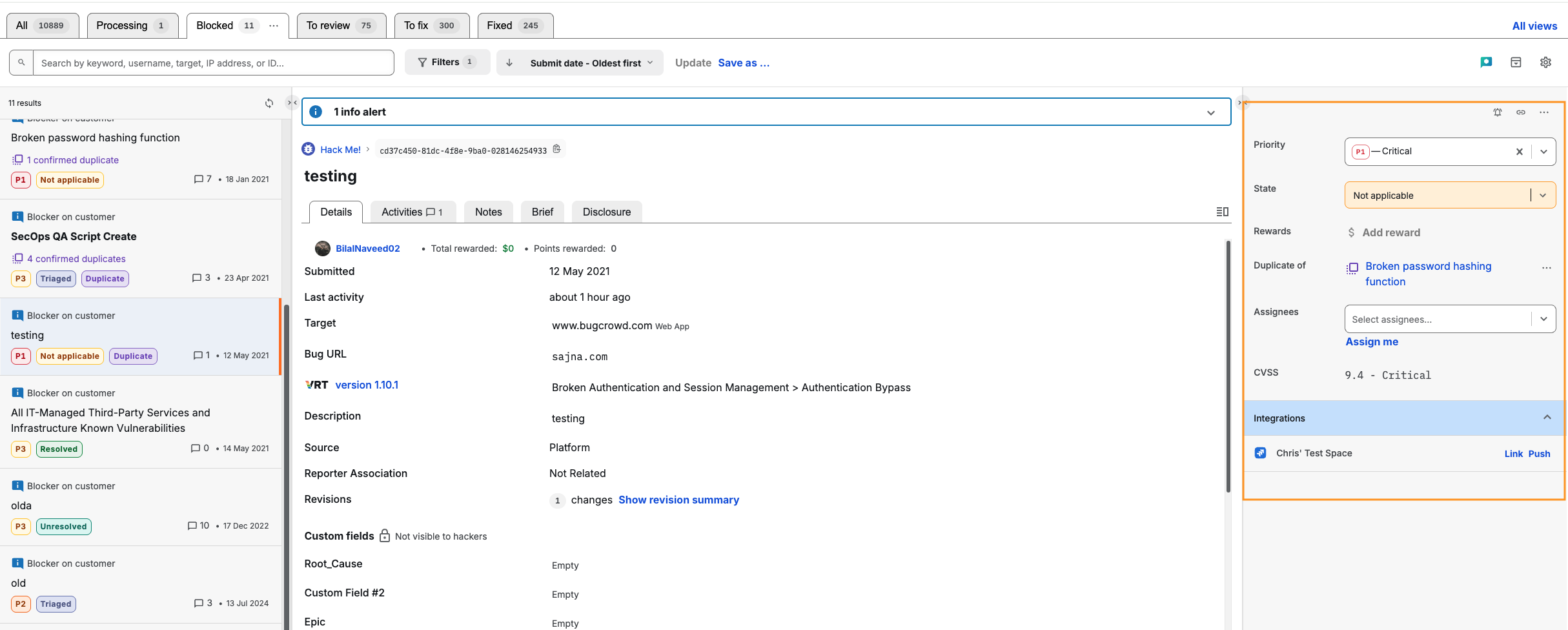
When you select a submission, use the right-hand sidebar to drive the vulnerability lifecycle.
- Setting Priority & State: Use the dropdowns in the right sidebar to update the Priority (Critical to Informational) and the State (e.g., New, Triaged, Unresolved, Resolved).
- Assigning Owners: Click Assign me or search for a team member to ensure clear accountability.
- Managing Duplicates: Click Mark as duplicate. The system will suggest existing reports based on the VRT (Vulnerability Rating Taxonomy) to save you time.
- Adjust CVSS: If enabled, Click the CVSS score to open the calculator. Adjust metrics like “Attack Vector” or “Impact” to automatically recalculate severity based on your specific environment.
Communication & Blockers
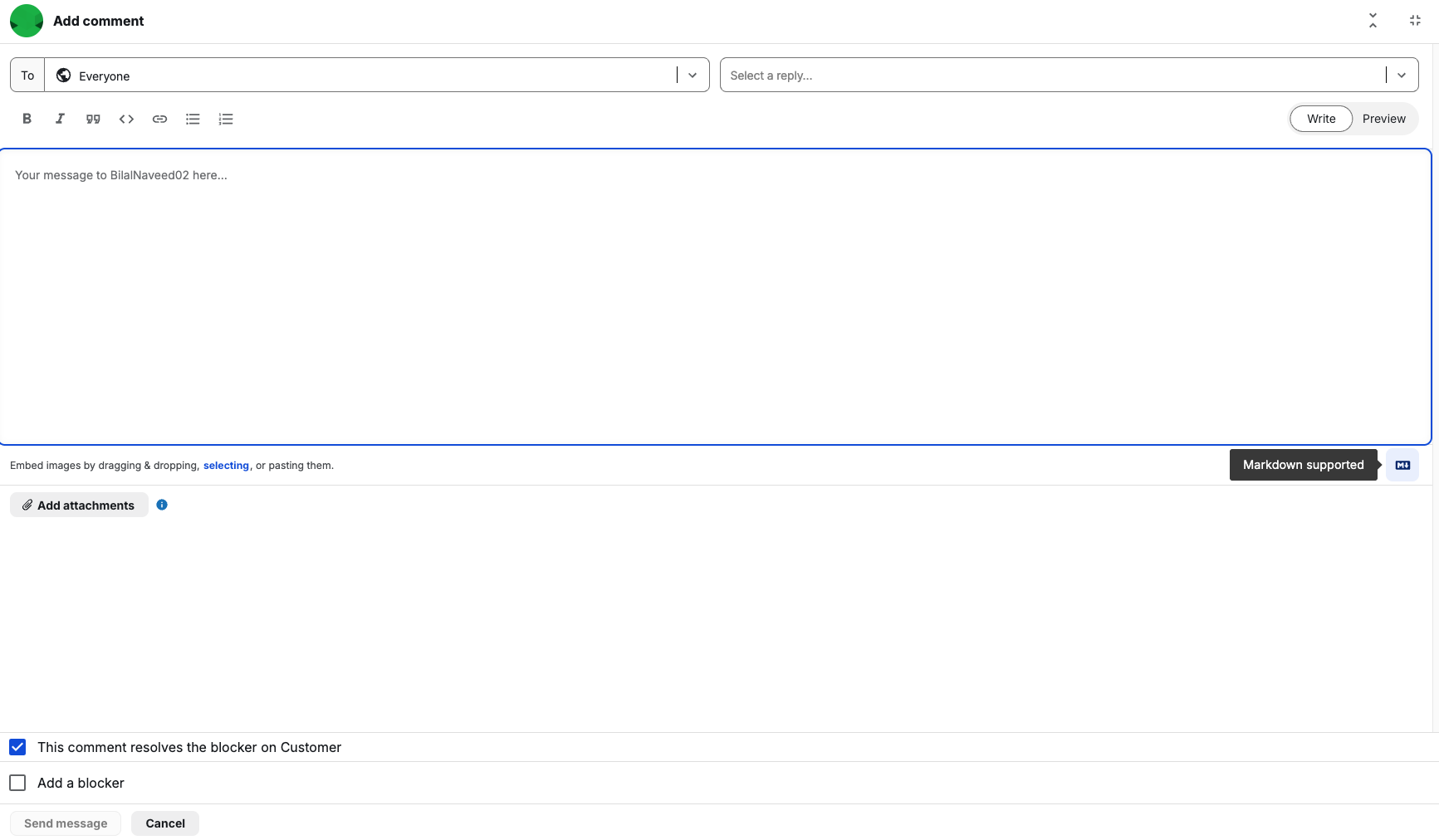
Collaboration with researchers and Bugcrowd happens via the Add Comment interface. Use this to gather evidence or provide status updates.
How to Communicate Effectively
-
Select Your Audience: Use the To: dropdown to control who sees your message:
- Bugcrowd: Only your team and Bugcrowd staff see the message.
- Everyone: Your team, Bugcrowd, and the Researcher see the message.
- Format with Markdown: Use the editor for technical clarity and the Preview tab to check code snippets.
-
Set a Blocker: If you cannot proceed without more info, check Add a blocker.
- Assign it to the Researcher (e.g., for more info) or Bugcrowd (e.g., for re-testing).
- Select a Reason to track why the submission is stalled.
- Send Message: Click Send Message to post your comment and activate the blocker status.
Important Considerations
- Visibility: Sent messages appear in the submission Activity stream for all authorized users.
- Notifications: If you message “Everyone,” the researcher receives an email notification immediately—even if the submission hasn’t been claimed yet.
- Blocker Limits: A submission can only have one pending blocker at a time. You must resolve the current blocker before adding a new one.
- Transparency: All blocker actions (creation and completion) are logged in the Activity feed. Researchers can see blocker alerts on their submissions.
AI Triage Assistant
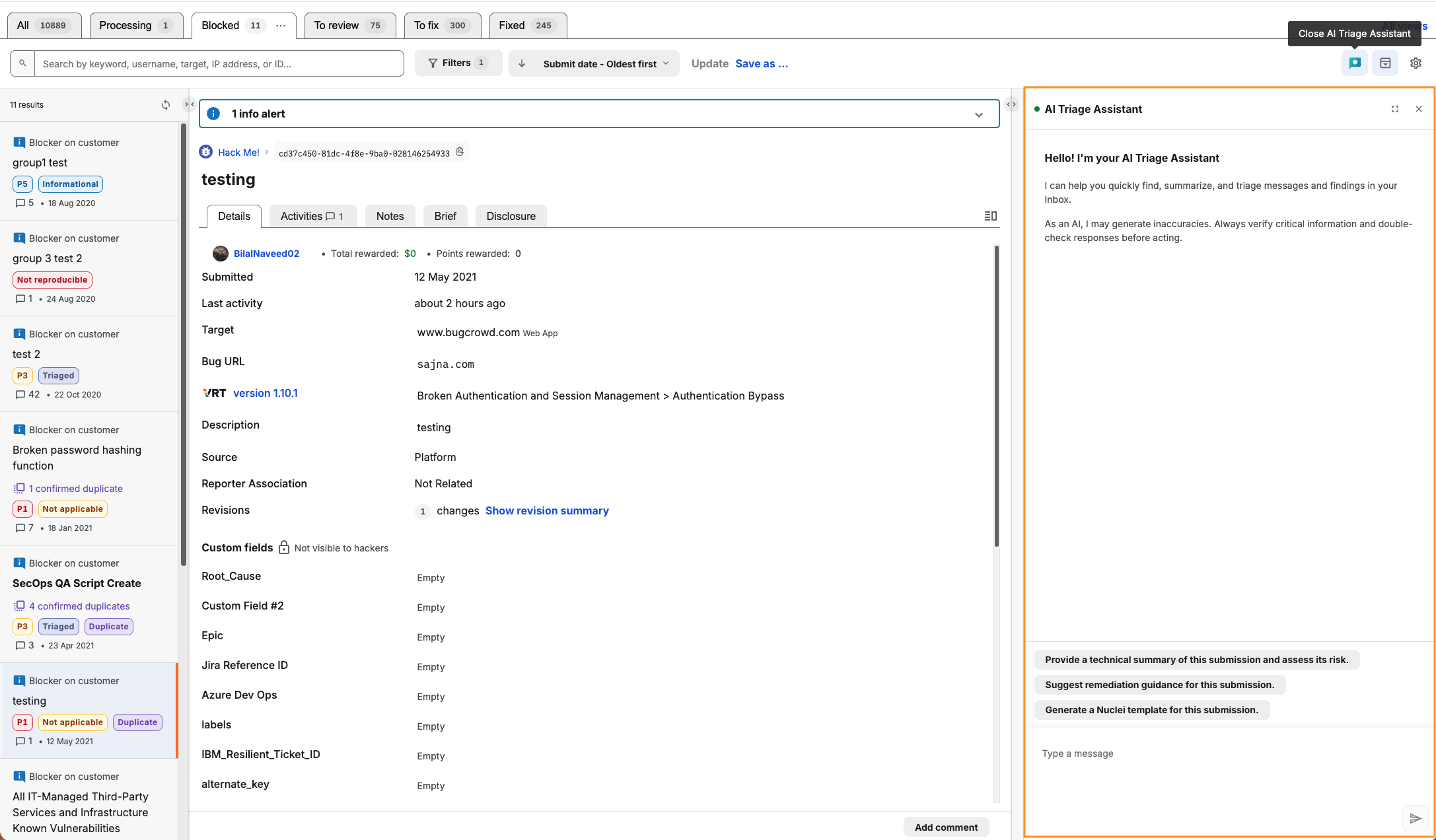
Accelerate your remediation workflow using built-in AI tools.
- Summarization: Ask for a “Technical Summary” to distill complex reports into a concise brief.
- Remediation Guidance: Generate actionable fix instructions for your engineering team.
- Automation: Create a Nuclei scan template based on the submission details.
For deeper details, see the AI Triage Assistant Documentation.
Actions & Exporting
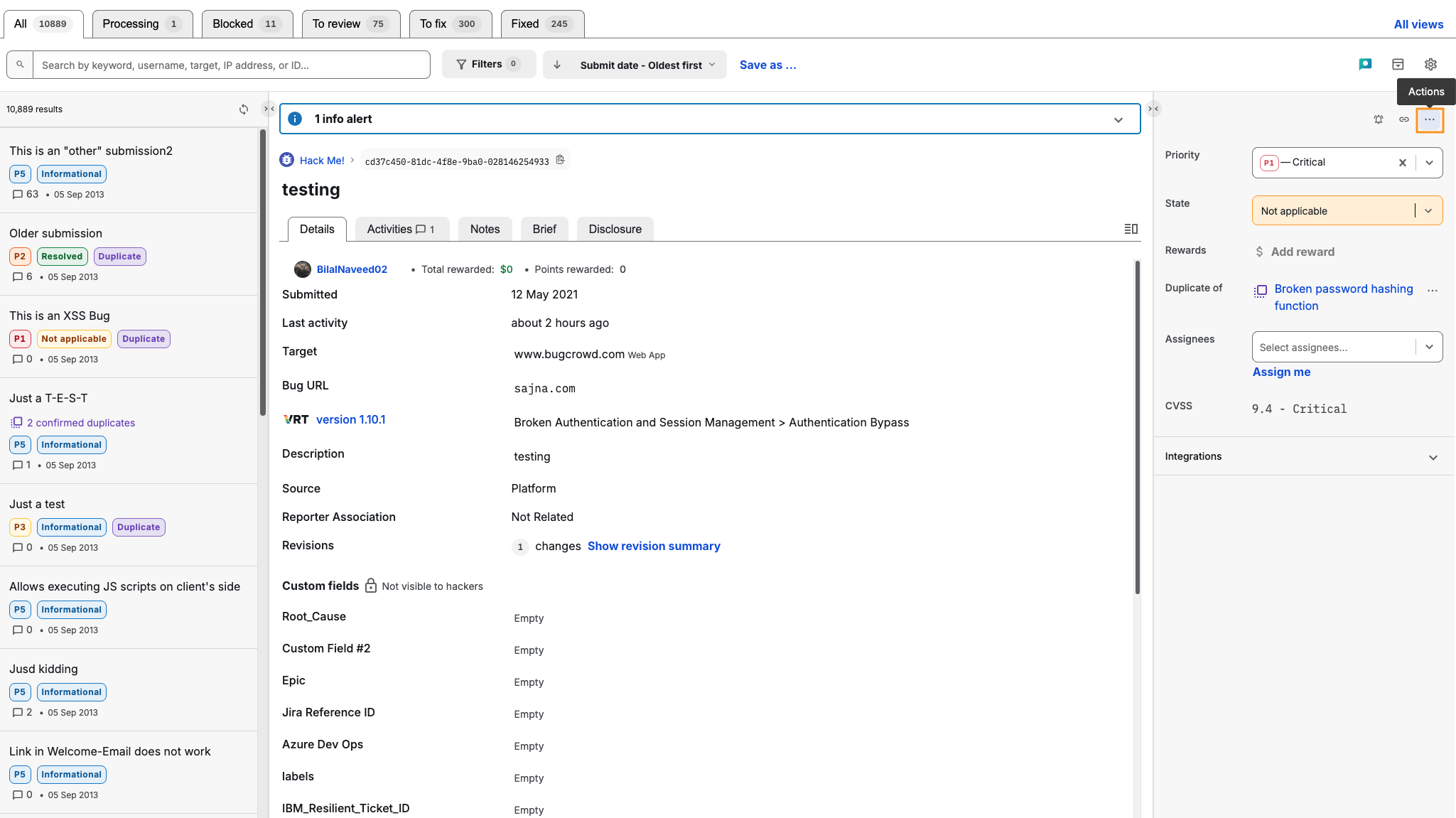
Click the three-dot menu (…) on the top right for advanced options:
- Print (Save PDF): Generates a formatted document including the activity log.
- Report an Incident: Leverage Bugcrowd’s de-escalation expertise by reporting researcher issues directly in-platform for immediate investigation.
- Report an Incident: Leverage Bugcrowd’s de-escalation expertise by reporting researcher issues directly in-platform for immediate investigation.
Pro-Tips for Power Users
- Pause the SLA: Setting a blocker on a Researcher effectively “pauses” the response timer, signaling that the ball is in their court and keeping your team’s metrics accurate.
- The Split View Advantage: Compare technical details—like activities, briefs, and disclosures—side-by-side for a more efficient vulnerability analysis.
- The Split View Advantage: Compare technical details—like activities, briefs, and disclosures—side-by-side for a more efficient vulnerability analysis.
- Saved Views Efficiency: Use Saved Views to easily focus on the vulnerabilities you want to track and manage with one click for you and your team.
- Preview Before Posting: Always preview Markdown when providing remediation steps to ensure the engineer receives a clean, readable code block.